Back to Features Guide
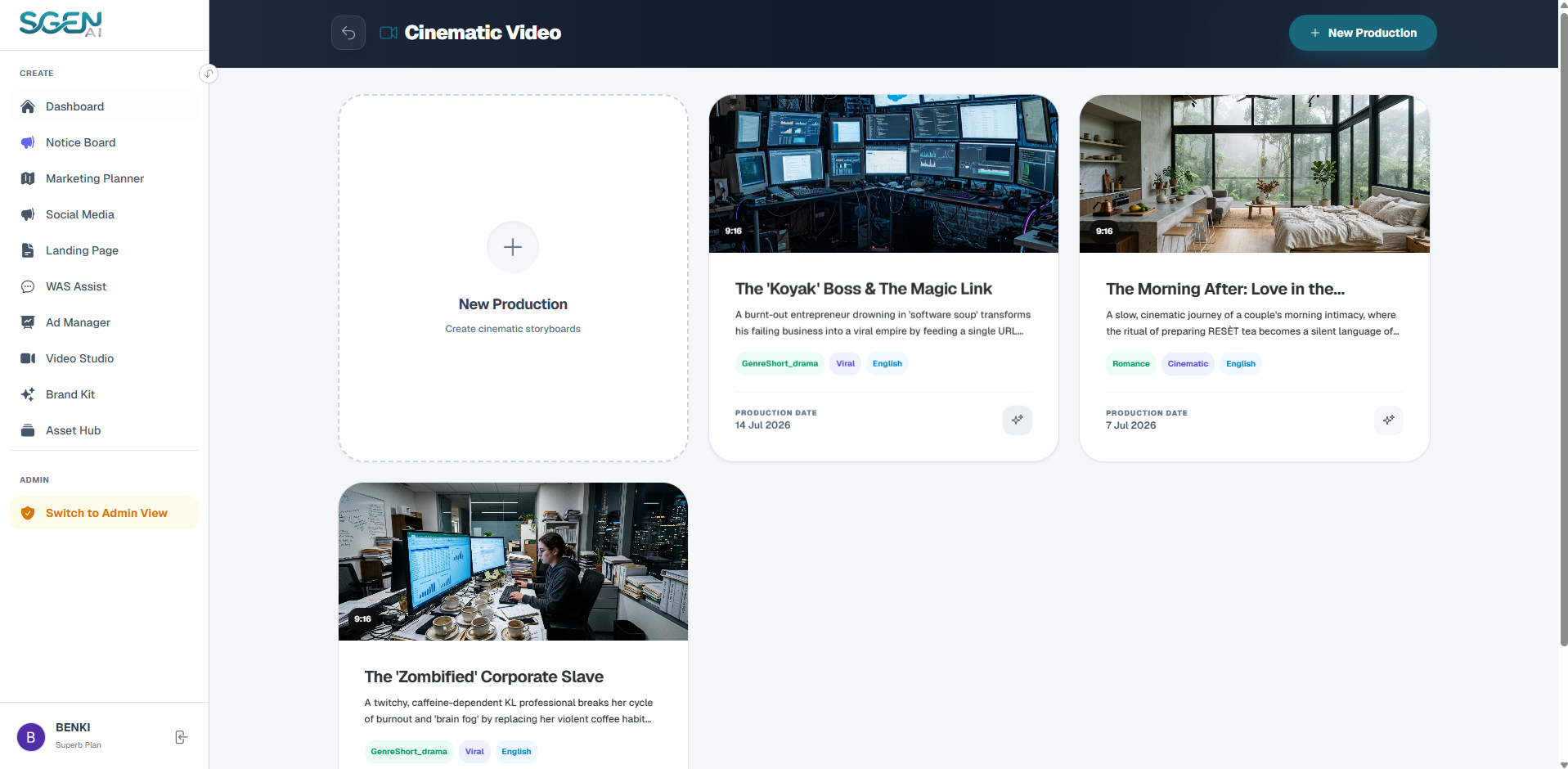
Stage 1: Pre-Production
Establish high-level directions and structural limits for your cinematic reel before writing any script:
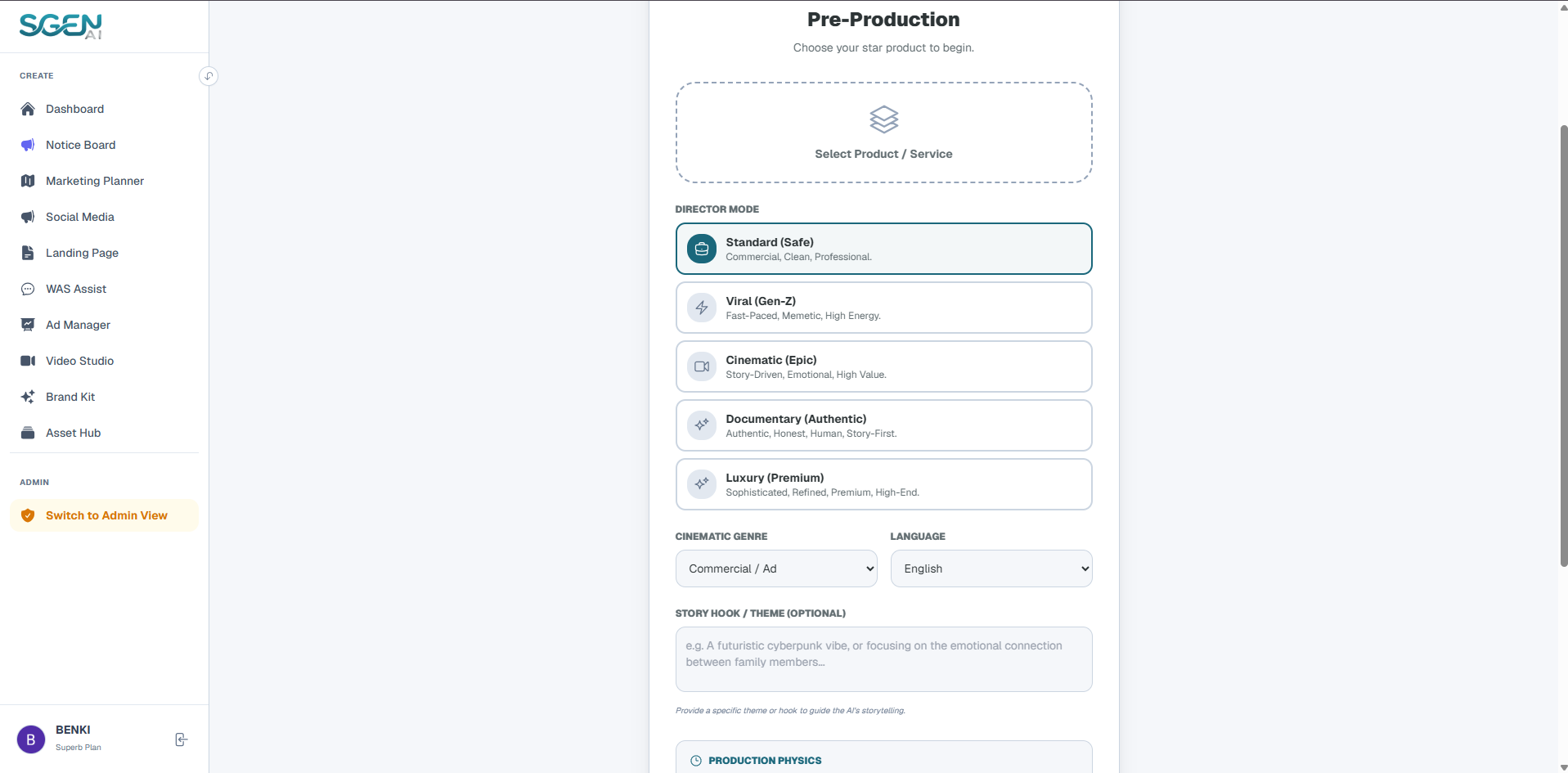
1. Asset Hub Products Mapping
Select the main item from your Asset Hub dropdown to let the director pull catalog context.
2. Core Project Parameters
- Director Mode Select from 5 distinct AI director models:
- Standard (Safe) Commercial, Clean, Professional pacing.
- Viral (Gen-Z) Fast-paced, Memetic, High energy rhythms.
- Cinematic (Epic) Story-driven, Emotional, High value atmosphere.
- Documentary (Authentic) Honest, Human, Story-first perspective.
- Luxury (Premium) Sophisticated, Refined, High-end aesthetics.
- Genre Settings Select the cinematic genre (Product Launch, Mini-Movie, Fashion Editorial).
- Story Hook / Theme Input optional design tags or concept prompts (e.g. Cyberpunk theme, Emotional family hook).
- Language Profile Select target script outputs (English, Chinese, Malay).
3. Production Physics Parameters
 Action: Click "Start Brainstorming" to initialize.
- Aspect Ratio Select 16:9, 9:16, or ultra-widescreen 21:9 cinematic format.
- Total Duration Bounds Select target length bounds (9s to 120s).
- Max Clip Length Choose specific frame boundaries per scene cut (6s, 8s, 10s, 12s, 15s).
Action: Click "Start Brainstorming" to initialize.
Stage 2: Pitch View (Concept Selection)
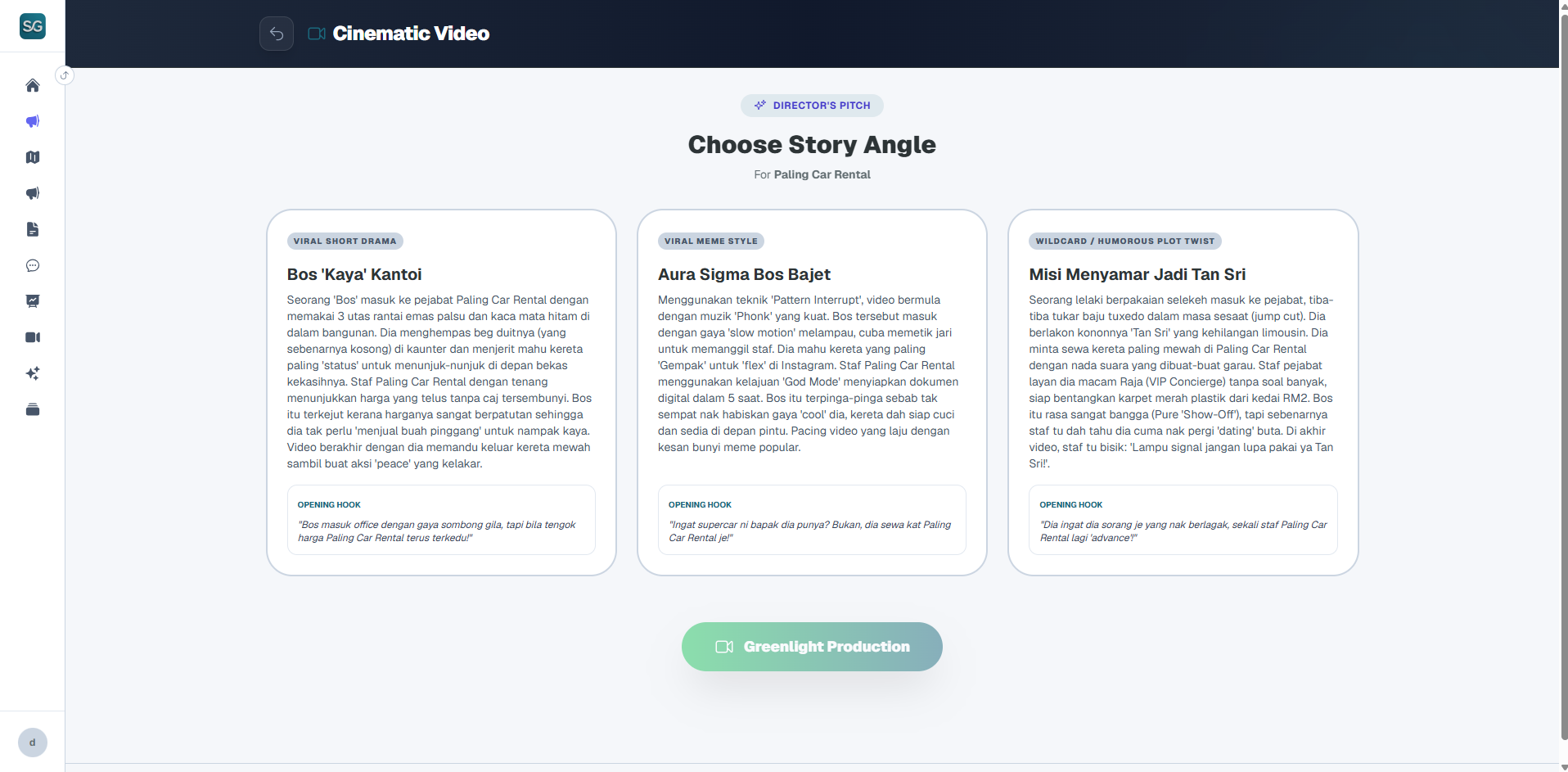
Instead of direct scripts, the AI director drafts multiple concept pitches for you to select:
Review Creative Concepts
Browse through the creative proposals. Each concept card displays the Angle, Title, Summary, and Opening Hook.
Greenlight Production
Select the preferred direction card and click "Greenlight Production" at the bottom to launch script processing.
Stage 3: Global Reference Assets (Cast & Location Locking)
Coordinate global casting and locations assets before filming starts to ensure visual consistency:
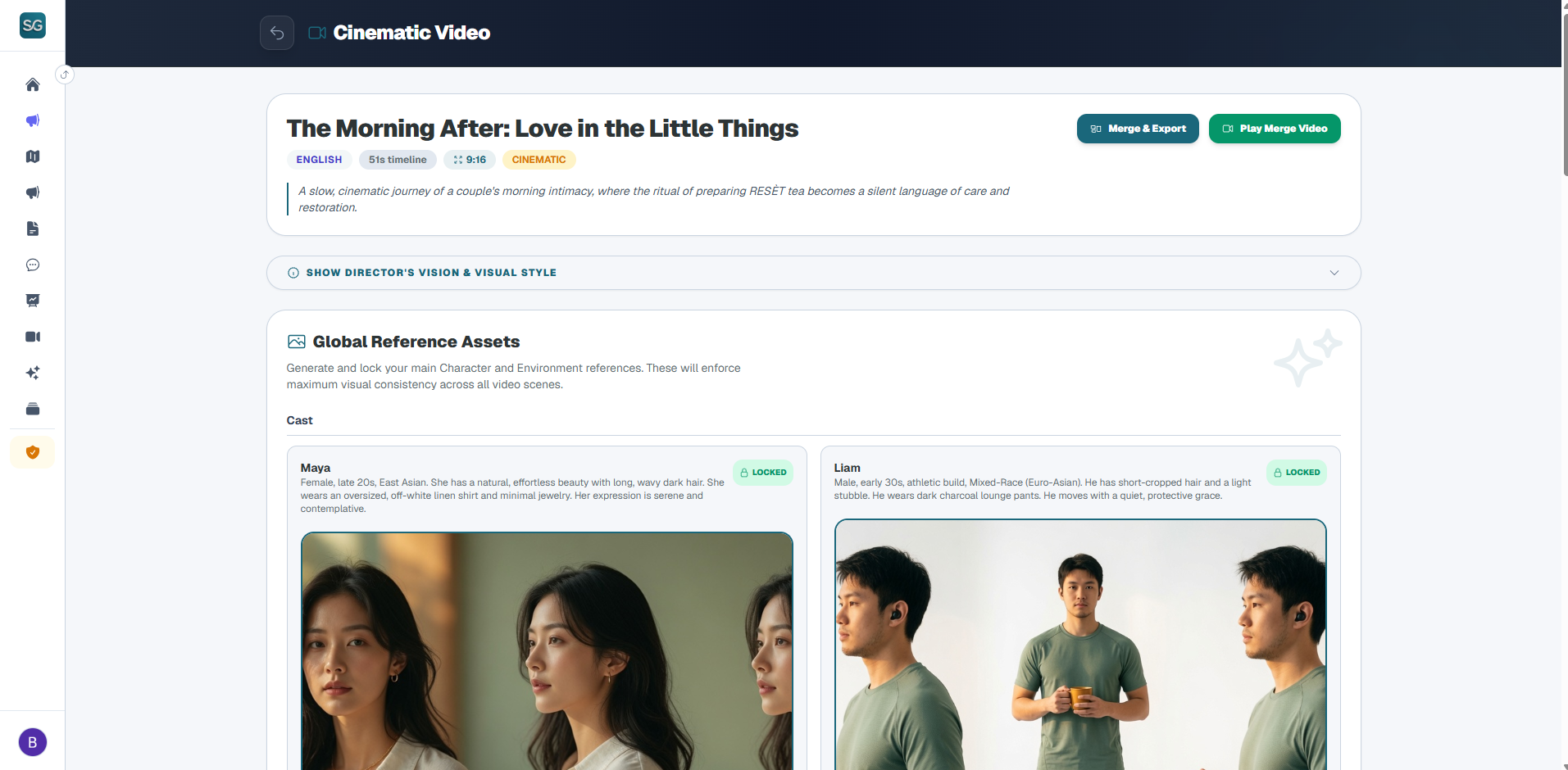
1. Cast Setup (Actors)
Sgen AI extracts character roles from the greenlit script. Choose to generate AI candidate faces or upload manual pictures. Lock characters to bind their face parameters. Multi-angle portrait generation keeps character features identical in all rendered shots.

2. Locations Setup (Backdrops)
Review extracted scene locations. Upload or generate location layout mockups and lock them to establish background consistency.
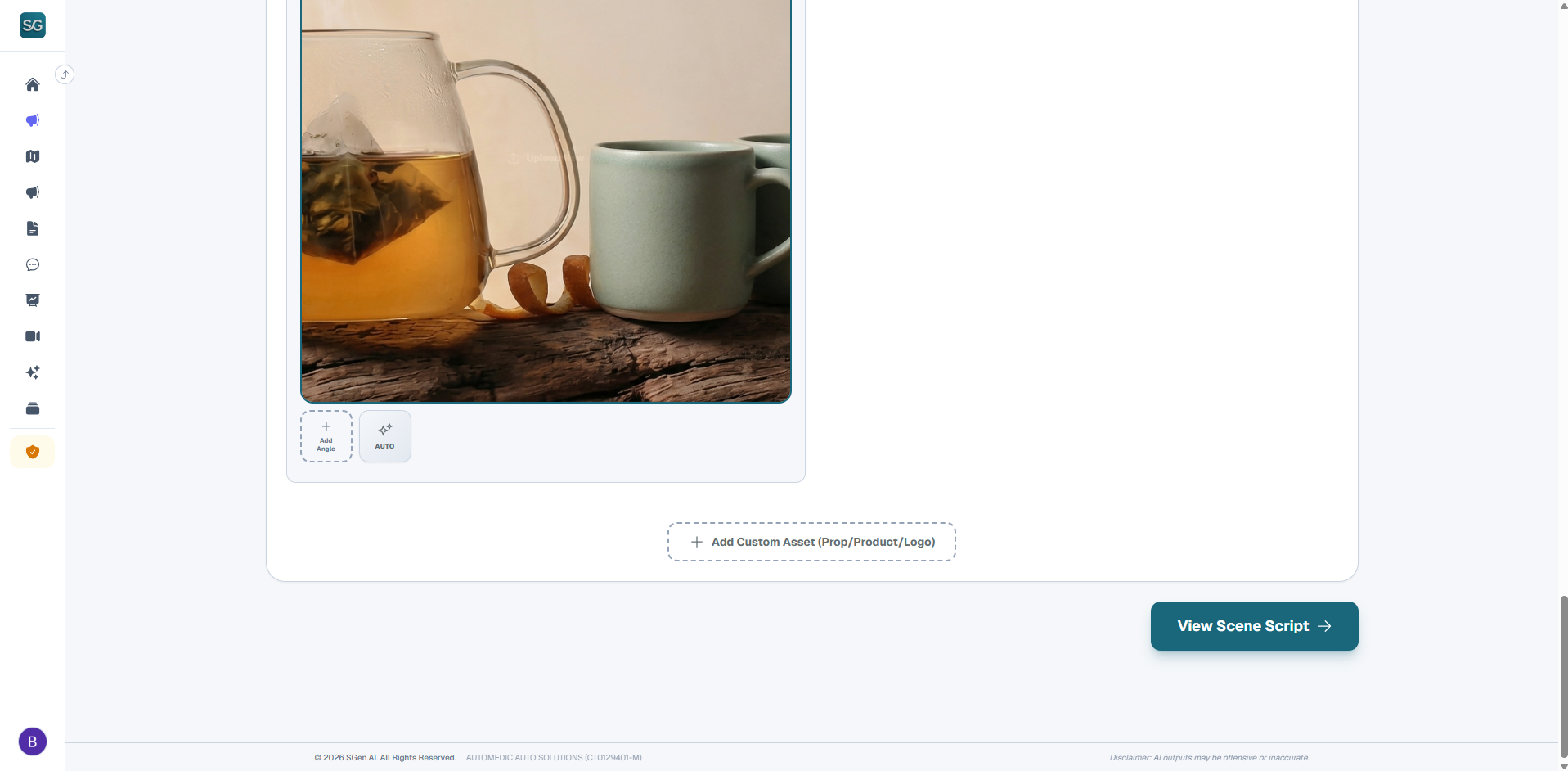
Action: Click "Next: Write Scene Script" to continue.
Stage 4: Workspace / Storyboard filming
Enter the film set to generate and merge separate cinematic scenes:
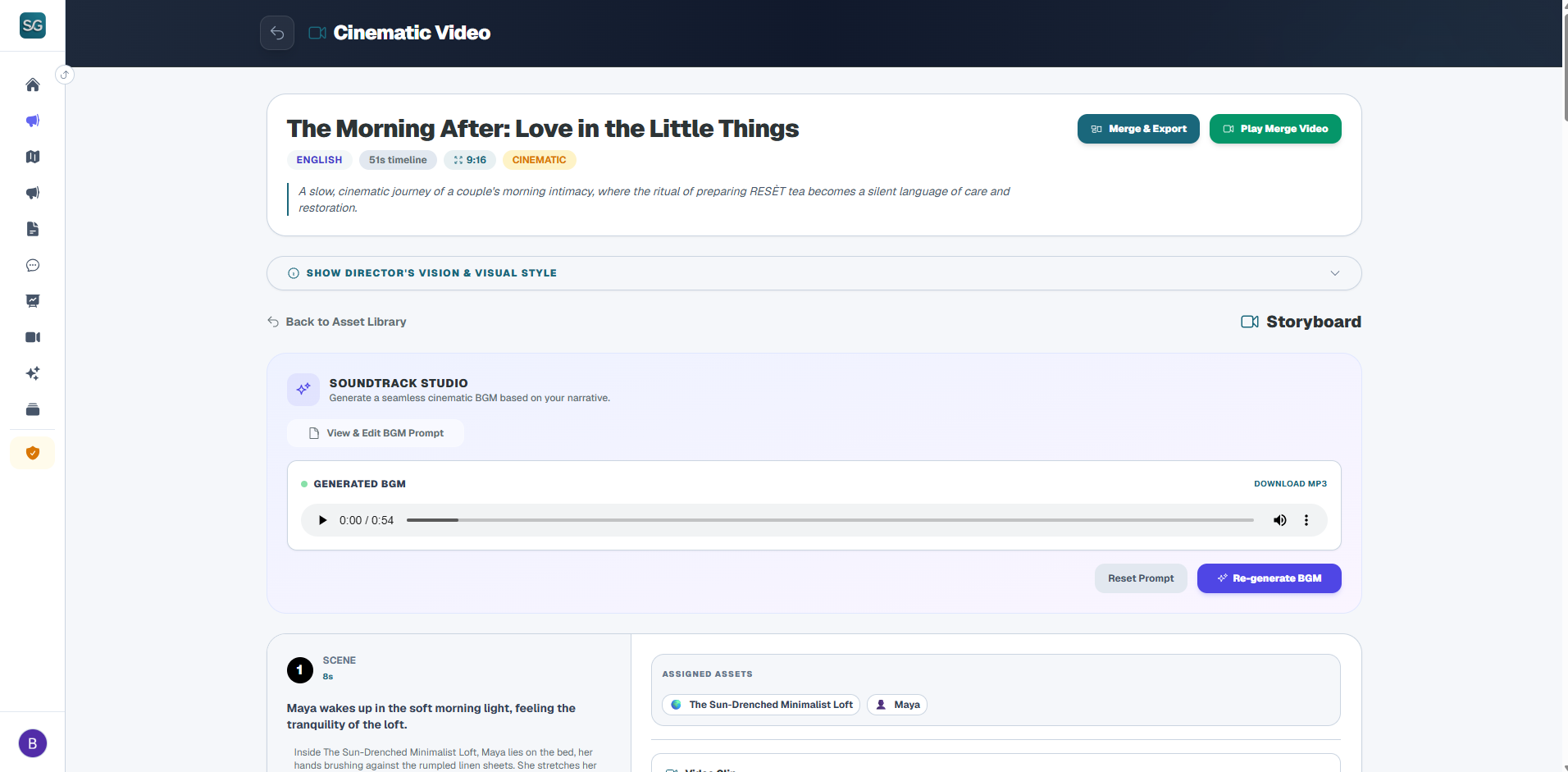
1. Top Board Panels
Click to unfold details about the locked Director's Vision, Visual Style guidelines, and Character Anchor properties.
2. Storyboard Controls
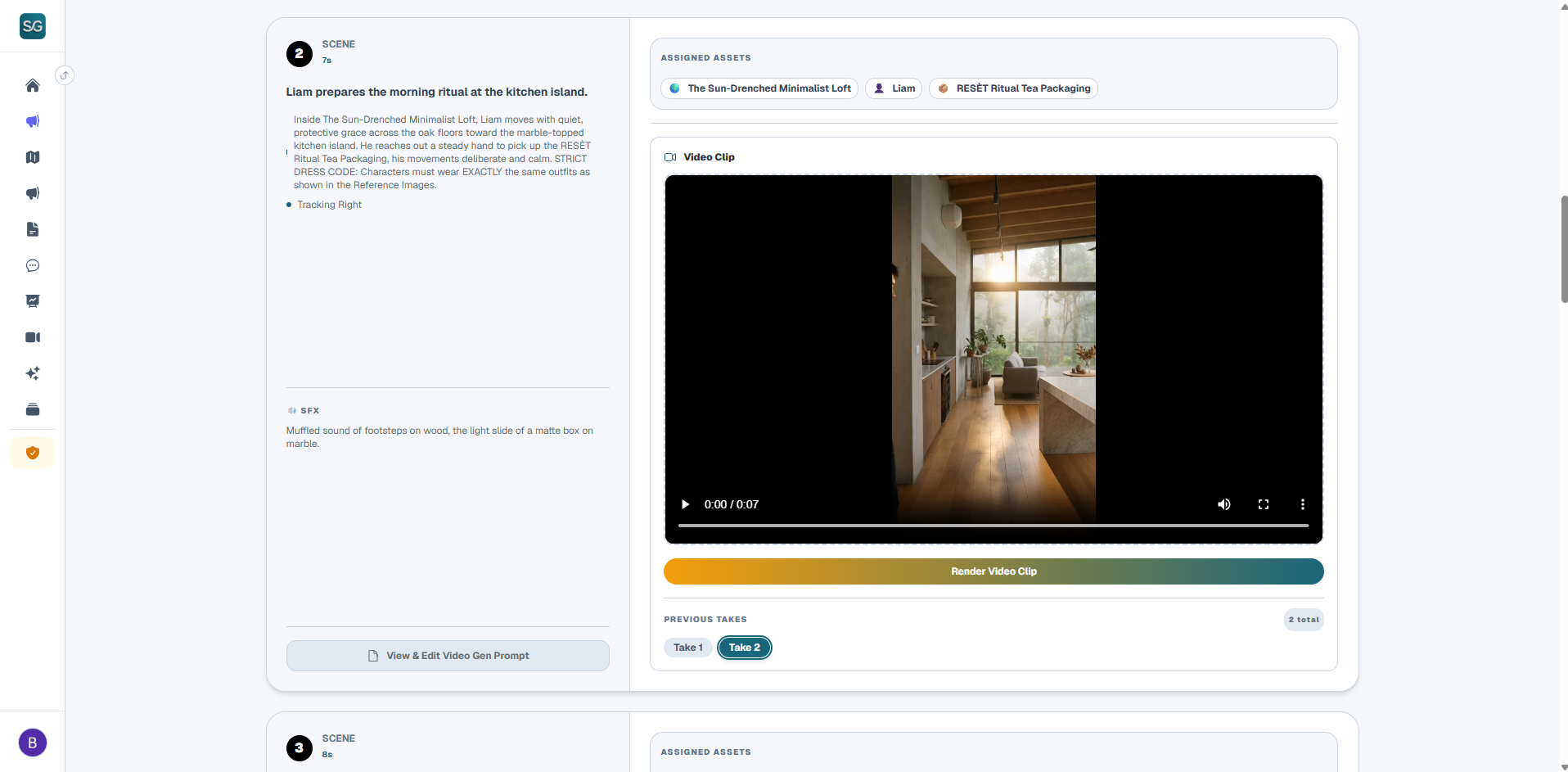
Review the sequence of scene cards. Each card hosts voiceovers (TTS), psychological target descriptions, and custom SFX directions. Double-click script texts directly to edit copy.
3. Filming Scenes
Click "GENERATE IMAGE" to output static frame compositions. Once satisfied, click "RENDER VIDEO" to animate lens motions and character actions.
4. Wrap & Export
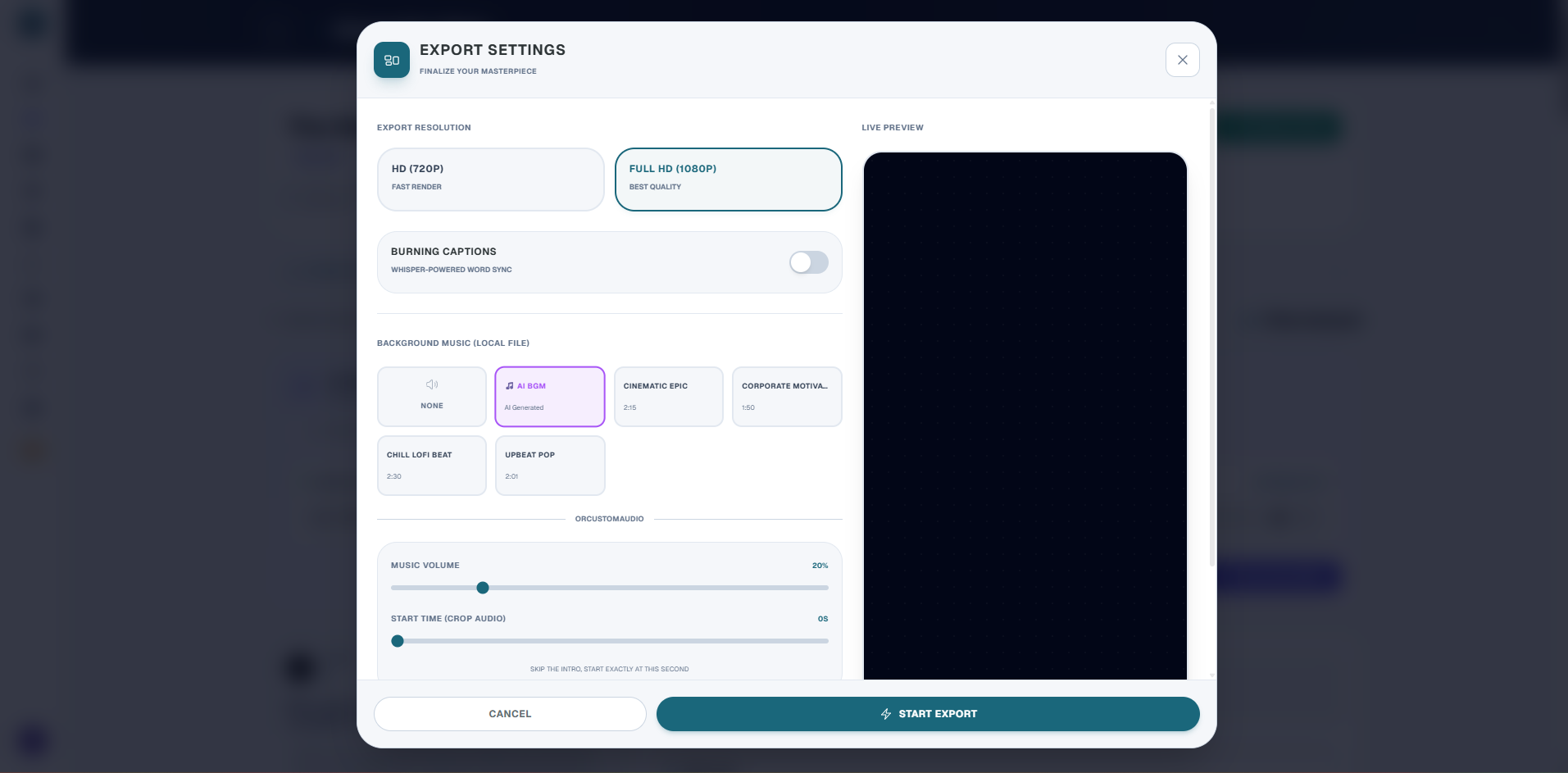
Generate AI Background Music at the top panel, then click "Merge & Export" in the upper-right corner to compile and download the finished cinematic MP4.