Back to Features Guide
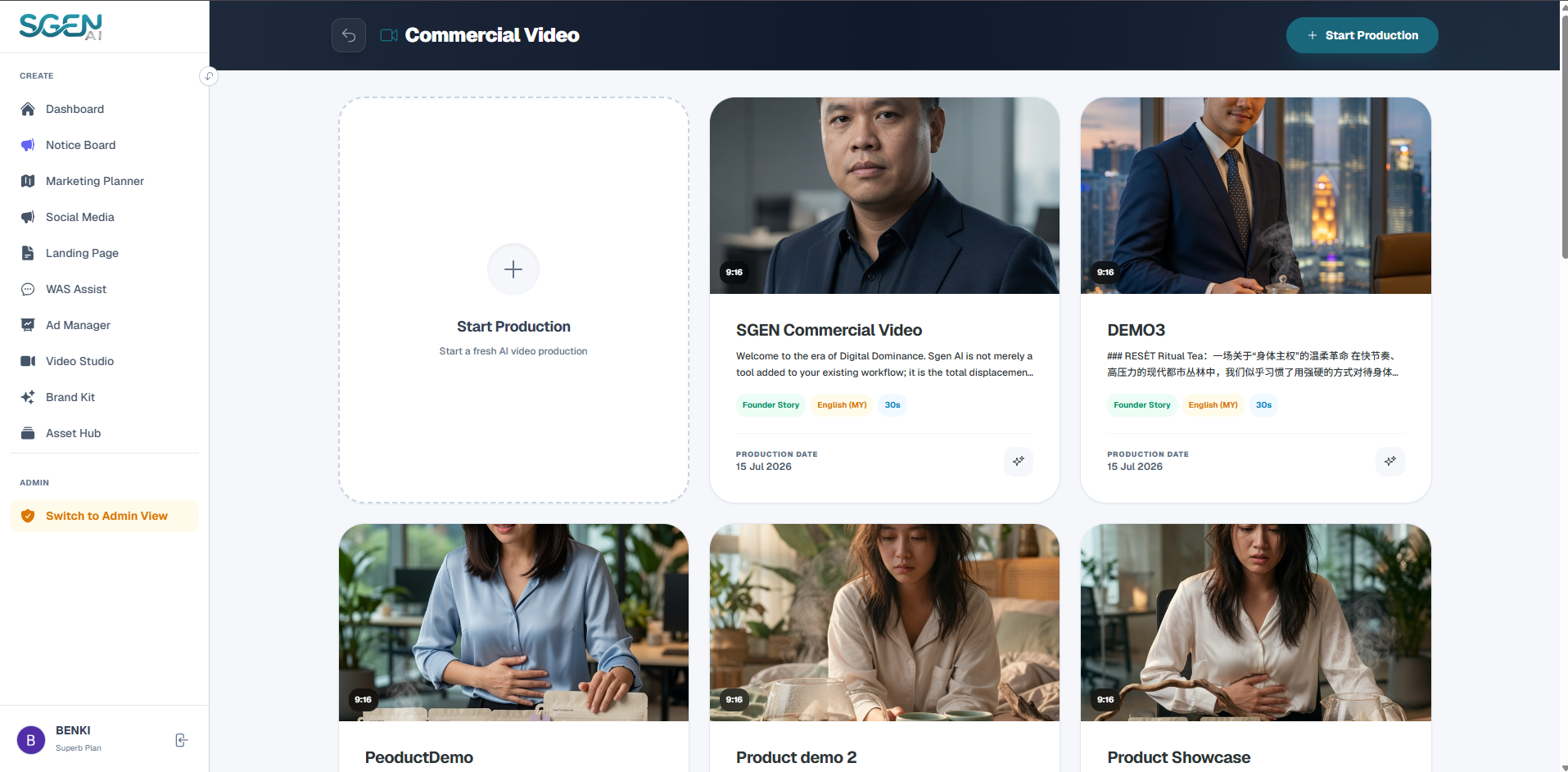
Commercial Video Creator Setup (4 Steps)
Configure project briefs, visual presenter consistency, and cultural targeting matrices inside our video director module:
Step 1: Core Info
Establish the primary creative direction and format for the rendering script:
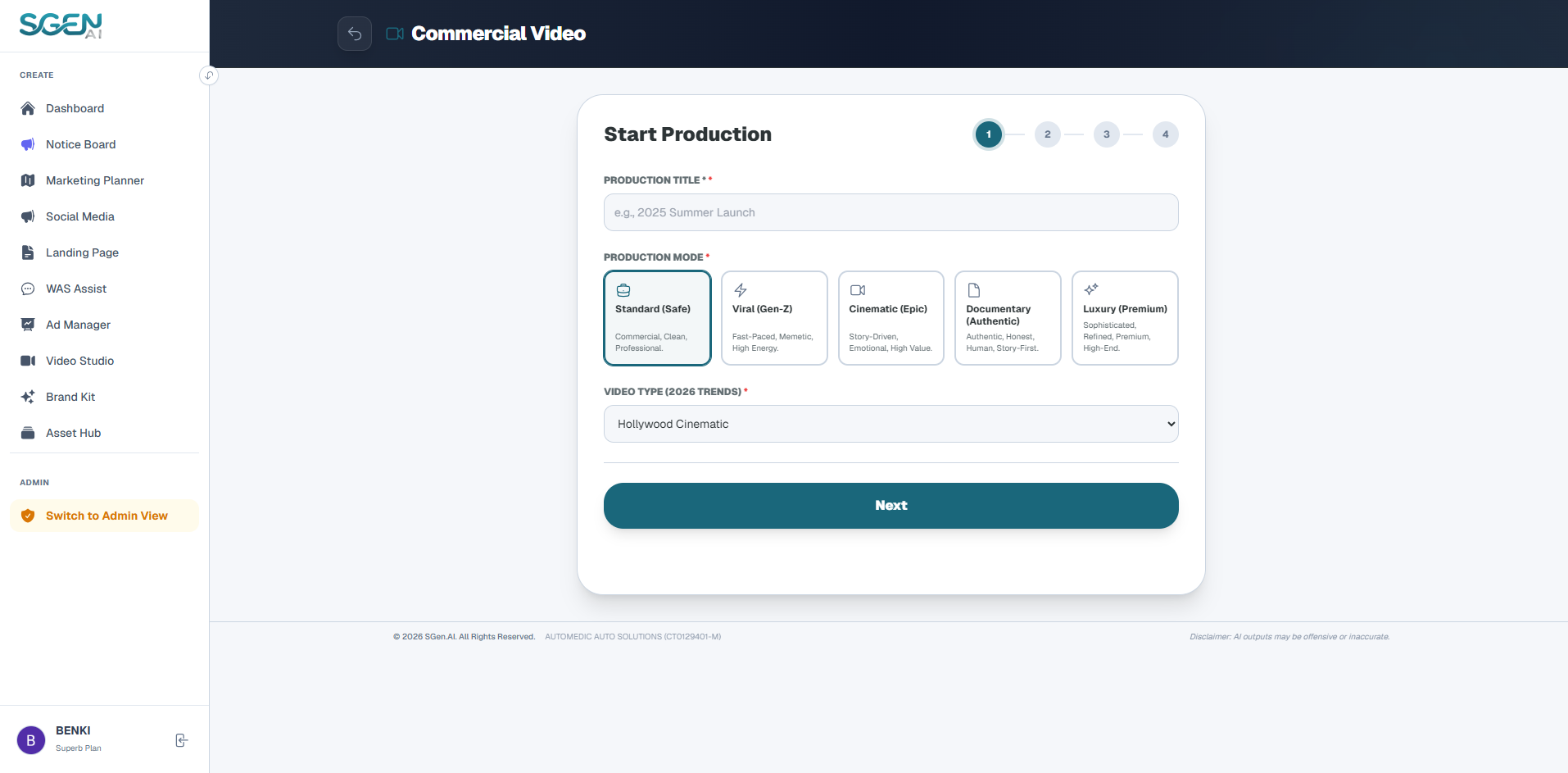
- Project Title Input a reference title to identify the video project.
- Production Mode (Director Mode) Select from 5 distinct AI director models:
- Standard (Safe) Commercial, Clean, Professional pacing.
- Viral (Gen-Z) Fast-paced, Memetic, High energy rhythms.
- Cinematic (Epic) Story-driven, Emotional, High value atmosphere.
- Documentary (Authentic) Honest, Human, Story-first perspective.
- Luxury (Premium) Sophisticated, Refined, High-end aesthetics.
- Video Type Designate the genre of the ad (Cinematic Brand Ad, POV Experience, Product Demo).
Step 2: Asset Settings
Focus details on product parameters and campaign audiences:
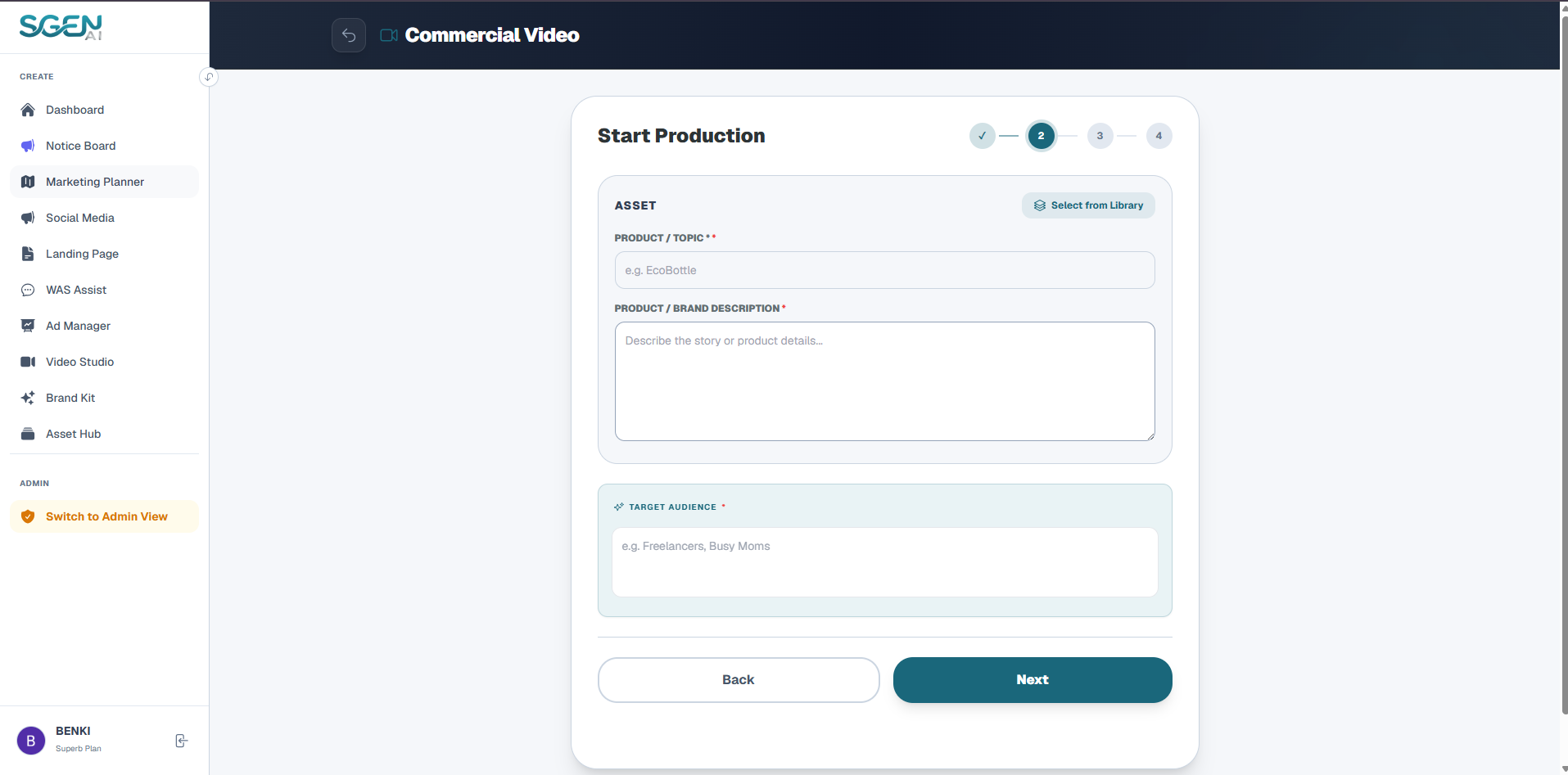
- Select from Library Link and auto-import existing catalog parameters.
- Product Name & Description Fill in product specs manually if not using library imports.
- Target Audience & Import from Asset Hub If a product is imported from the library, click "✦ Import from Asset Hub" to automatically pull the target personas profile configured in your hub files.
Step 3: Visuals & Characters
Inject reference visuals and character consistency rules to guide rendering frames:
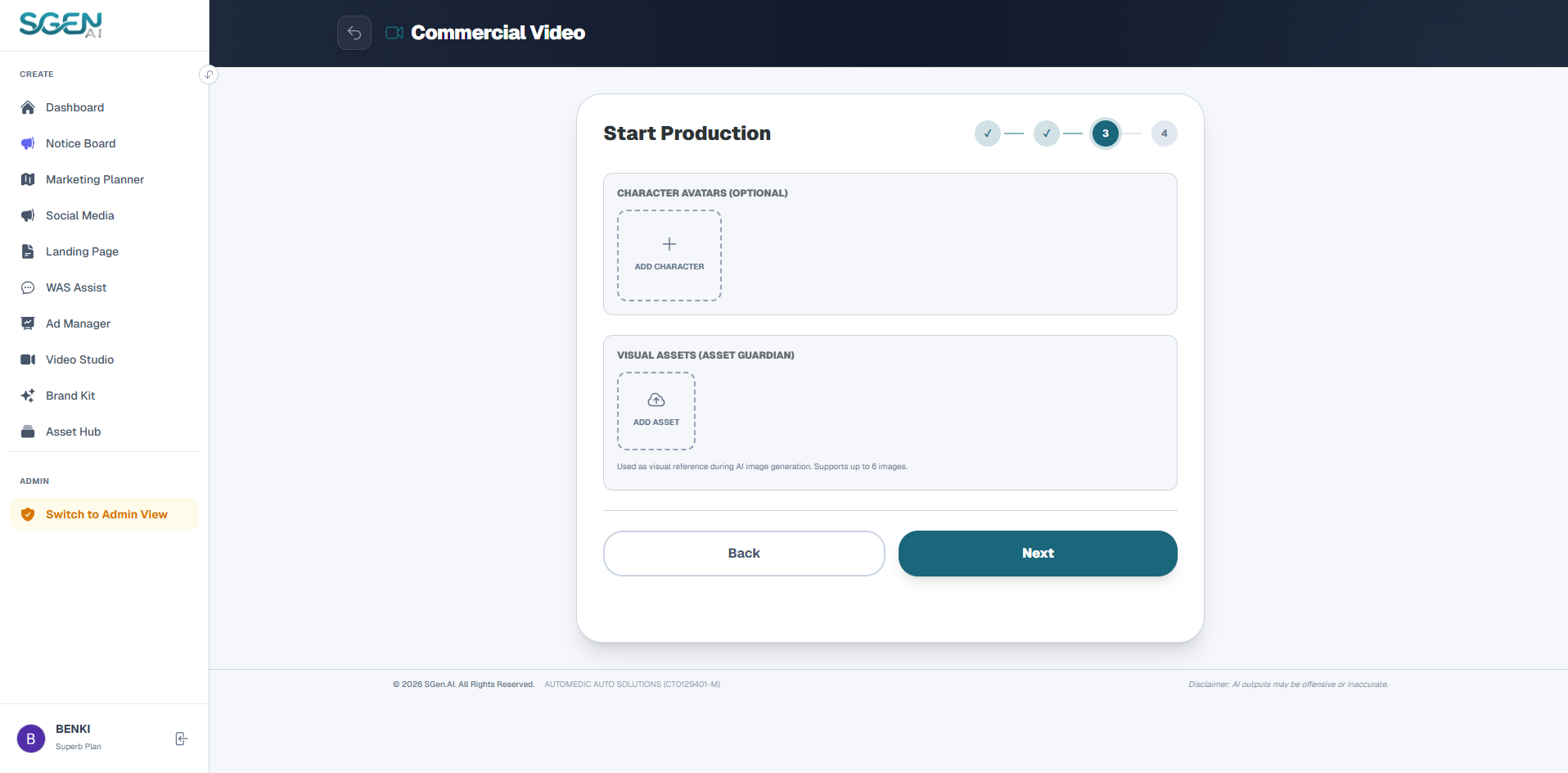
- Character Avatars Upload specific portrait photos and assign a name (e.g. Character A). Sgen AI saves custom avatar profiles to maintain actor consistency in all rendered clips.
- Visual Assets Upload up to 6 reference product graphics. The AI director references these files to compose frame layouts and item shots.
Step 4: Targeting & Vibe
Finalize aesthetic styles, cultural constraints, and frame aspect dimensions:
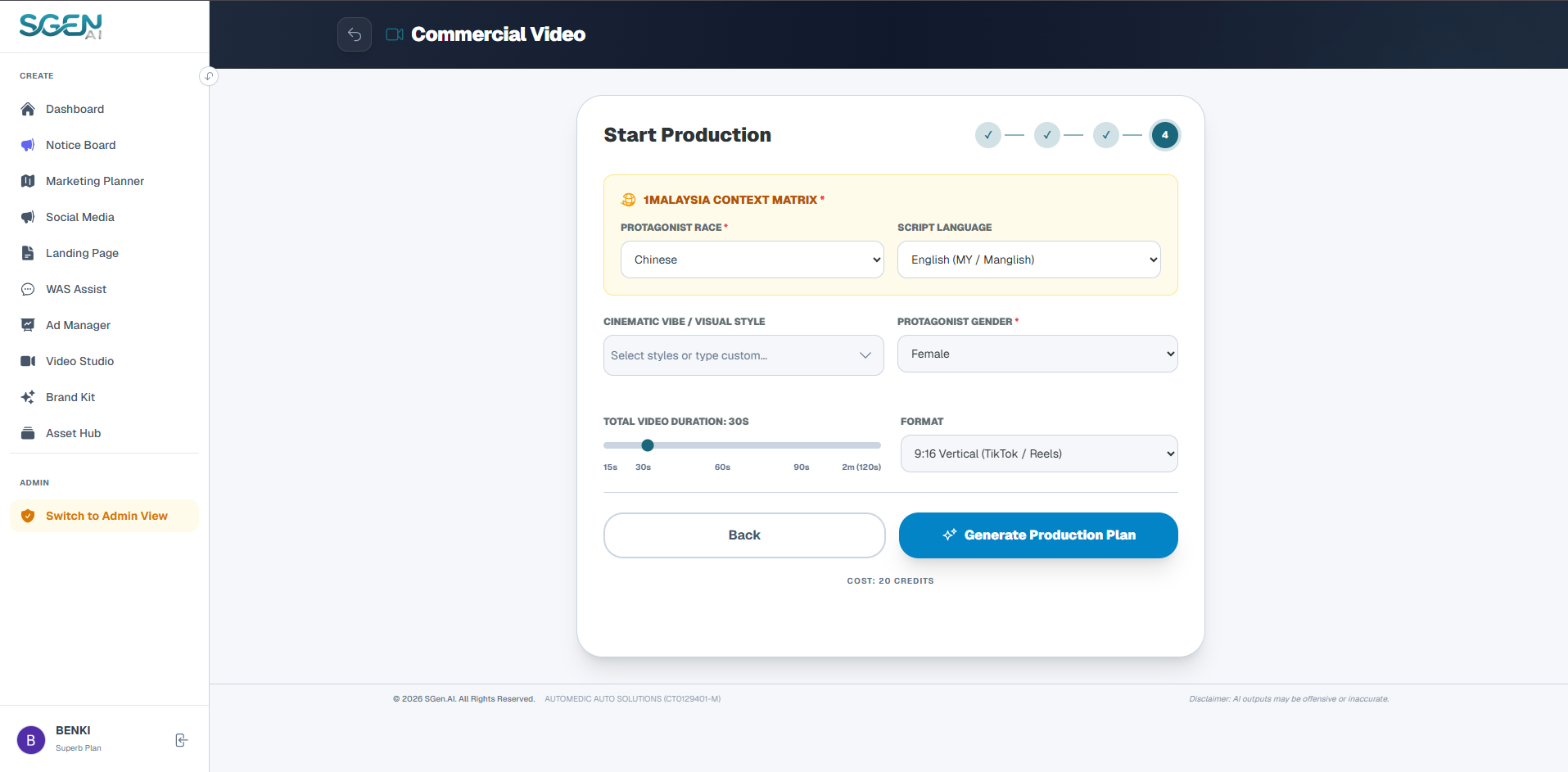
- 1Malaysia Context Matrix
- - Protagonist Race: Enforce specific presenter ethnicities (Malay, Chinese, Indian, or Bumiputera).
- - Language Selection: Select English (MY / Manglish), Malay, Chinese, or Tamil. The system locks corresponding protagonist races automatically.
- Visual Style / Vibe Input descriptive terms to lock in target lighting or atmosphere aesthetics.
- Protagonist Gender Select Male, Female, Neutral, or None (no speaker on canvas).
- Total Video Duration Adjust sliders to set video lengths (15s to 120s).
- Aspect Ratio Select 9:16 (vertical layout), 16:9 (horizontal layout), or 1:1 (square layout).
Workspace: Video Director Console Workspace
After clicking "Generate Script", the AI completes initial asset configurations and redirects you to the Workspace Console to supervise rendering:
1. Character Reference Sheet (Avatar Visual Consistency)
If portrait avatars were uploaded in Step 3, the presenter board handles model properties:

- Generate Profile Sheet Click to generate a detailed 3-angle model profile (capturing hair, features, and outfits).
- Lock Consistency This profile locks presenter variables to ensure character consistency across all rendered scenes.
2. AI Background Music (Strategic BGM Generator)
Configure custom audio loops synced to script pacing:
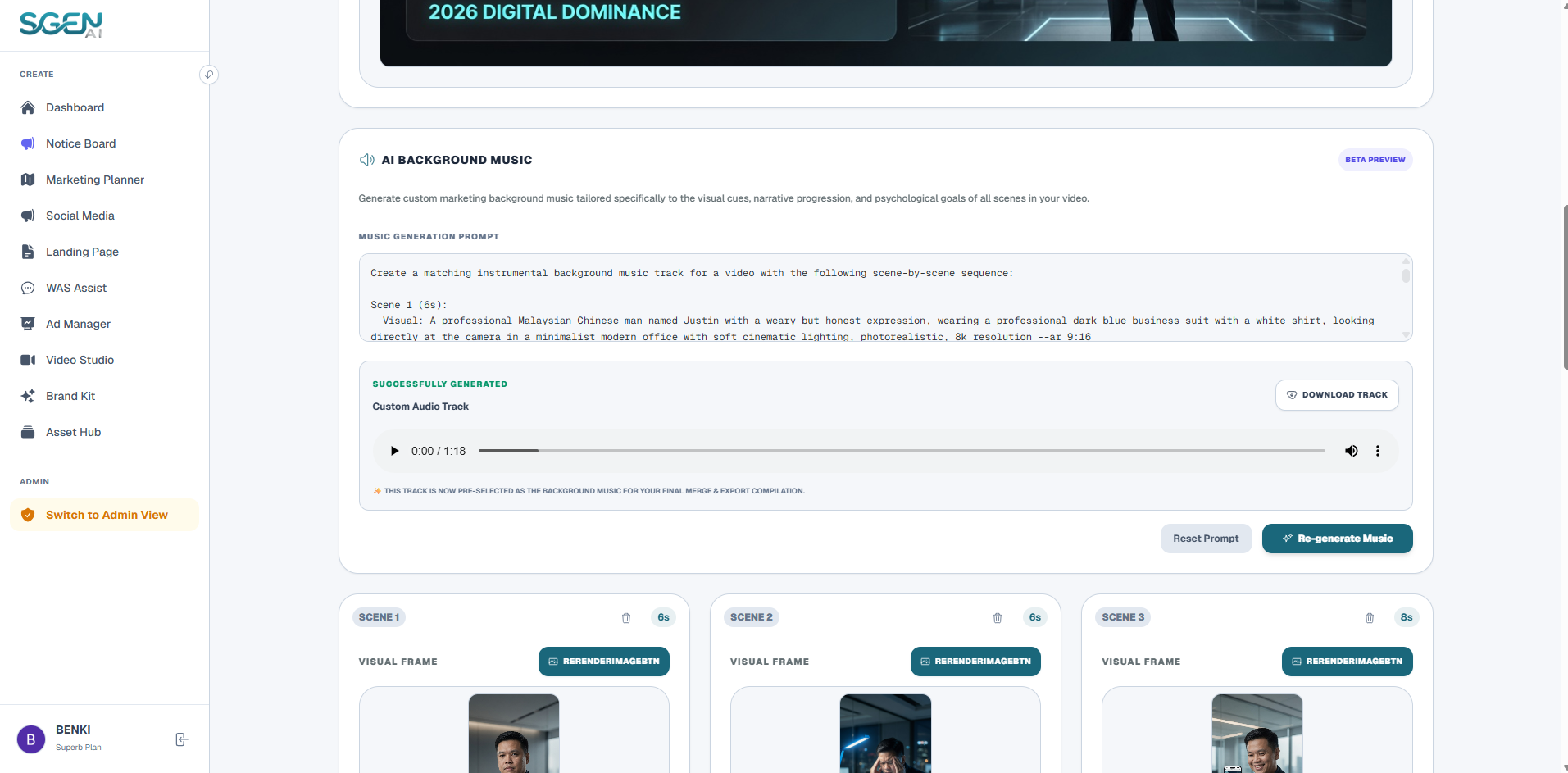
- Contextual Prompts Sgen AI reads the "Psychological Goal" and rhythm of each script card to formulate BGM prompt styles automatically.
- Generate Track Click "Generate Background Music" to compose an original track pre-selected for final video mixings.
3. Storyboard Console (Scene Controls)
The primary viewport breaks the script down into separate scene cards:
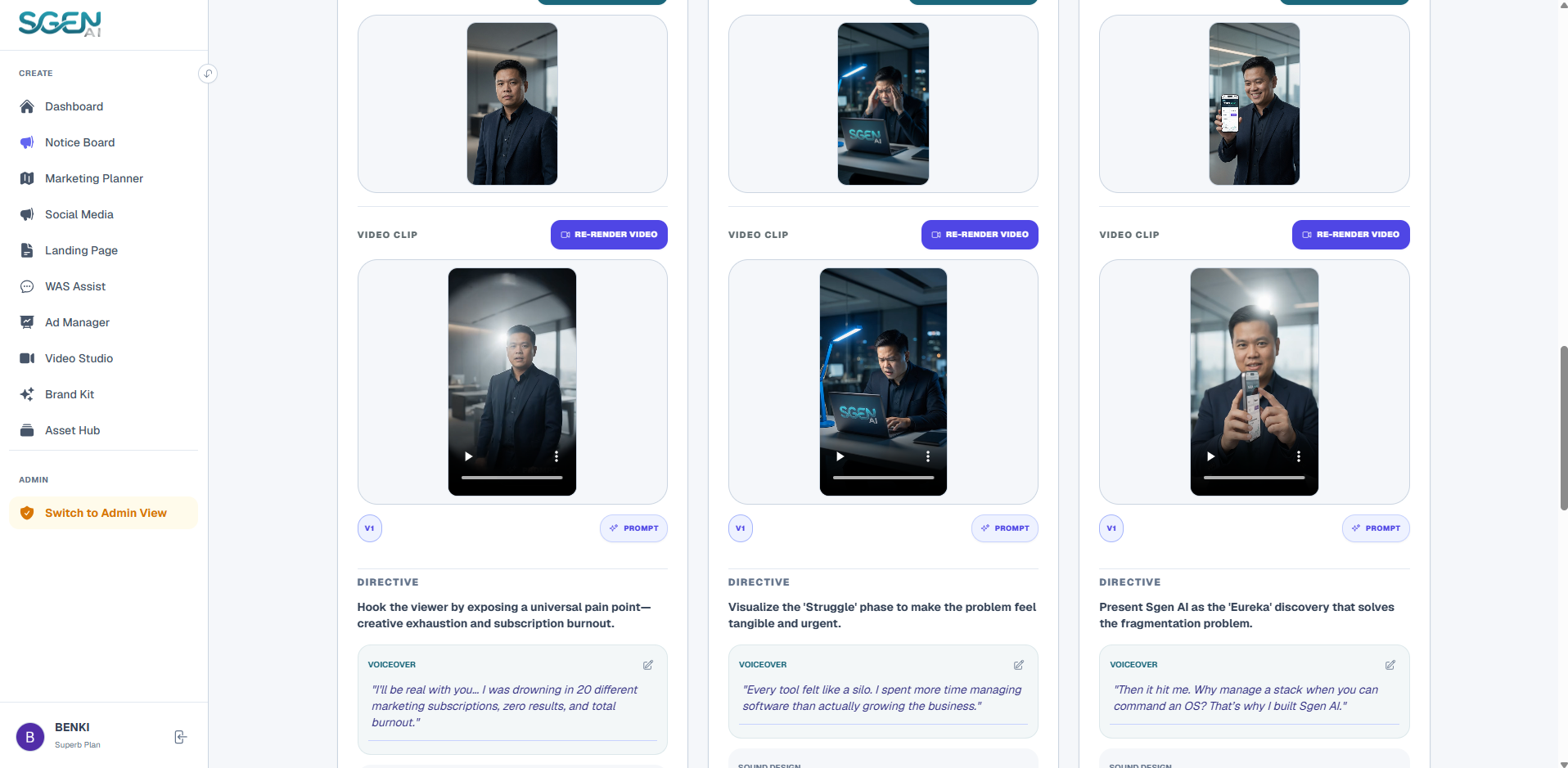
- Double-Click to Edit Copy Double-click script voiceovers on the left of any card to manually edit, delete, or rewrite copy. Click Save to log edits.
- Generate Static Visuals Click "GENERATE IMAGE" to render aesthetic static master scene layouts. You can re-render frames until satisfied.
- Render Motion Clips Click "RENDER VIDEO" to inject active physical movements (lens pan, smile, product splashes) to output the scene video clip.
- Version History Sgen AI logs all rendered attempts (V1, V2), allowing you to toggle back and select preferred visual outcomes.
4. Merge & Export
Once all clips are rendered and background music is ready, look at the upper-right corner of the workspace:
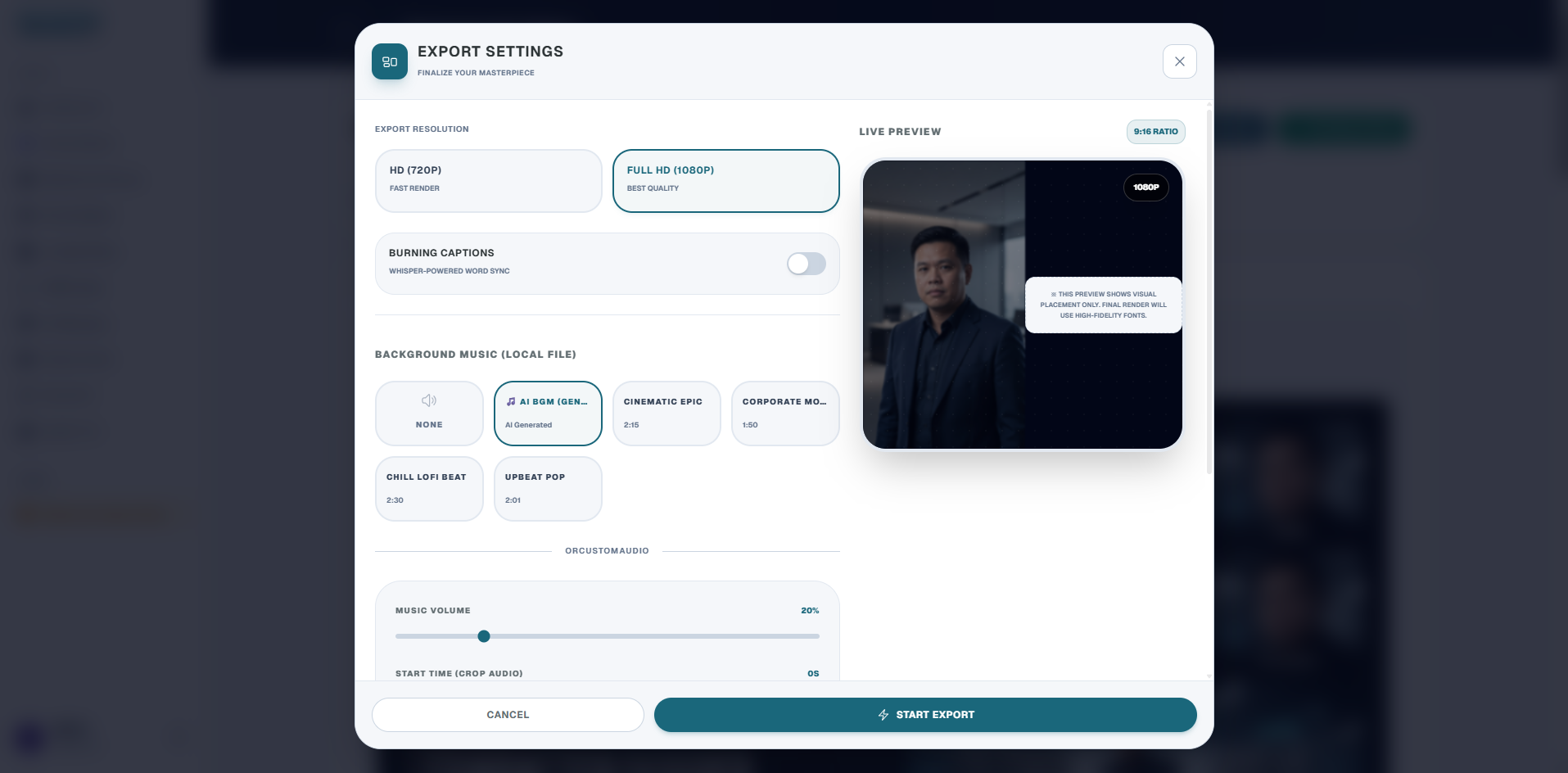
- Merge Processing Click "Merge & Export". The cloud renderer stitches segments, overlays subtitles, mixes background audio tracks, and outputs the video.
- Compilation Download Click the green "Play Merge Video" button to preview and download the finished commercial.